You have the Google Analytics 4 account and the data is flowing, but the dashboard is a wall of charts you scroll past. Underneath it all, GA4 answers three plain questions about your website.
How do visitors find my site?
The channels and campaigns that bring people in: search, social, ads, email, or direct.
GA4: AcquisitionWhat are they doing on my site?
Pages viewed, time spent, and actions taken.
GA4: EngagementDid it lead to anything?
Enquiries, sign-ups and sales: the few actions that matter to the business.
GA4: Key events & revenueEverything else in GA4 is detail hanging off those three questions. Answer them and you can read almost any report.
How GA4 records everything
First, one picture. GA4 stores everything a visitor does as an event. A page view is an event. A click is an event. A form submit or a purchase is an event. Each event can carry parameters, the context that makes it useful. Get this diagram and the interface stops looking random.
page_view→Views, part of a sessiongenerate_lead→A key event (a conversion)purchase + value→RevenueThe whole tool in one line: visitors trigger events, events carry parameters, and every report is counts and rates built on those events.
The older Universal Analytics was built around the pageview, with events bolted on. In GA4 the pageview is one event among many, which is why the same machinery measures pages, scrolls, downloads and purchases side by side.
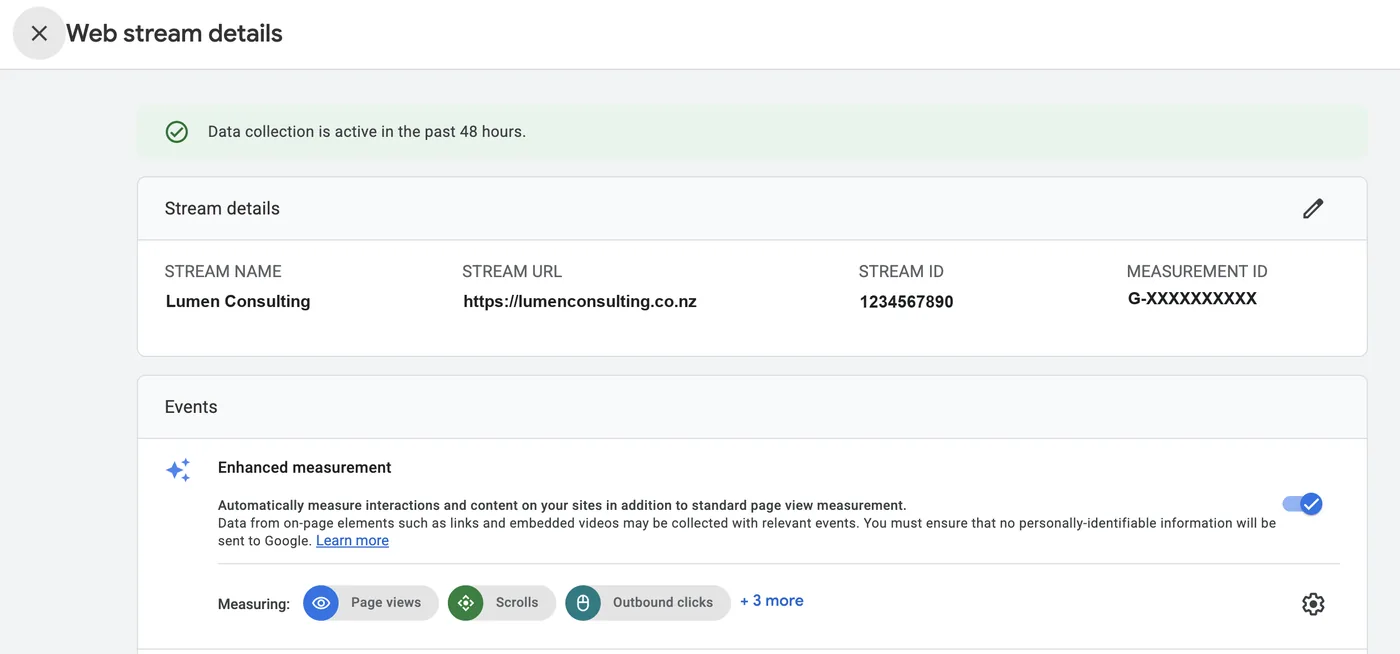
Answering the three questions
How do visitors find my site?
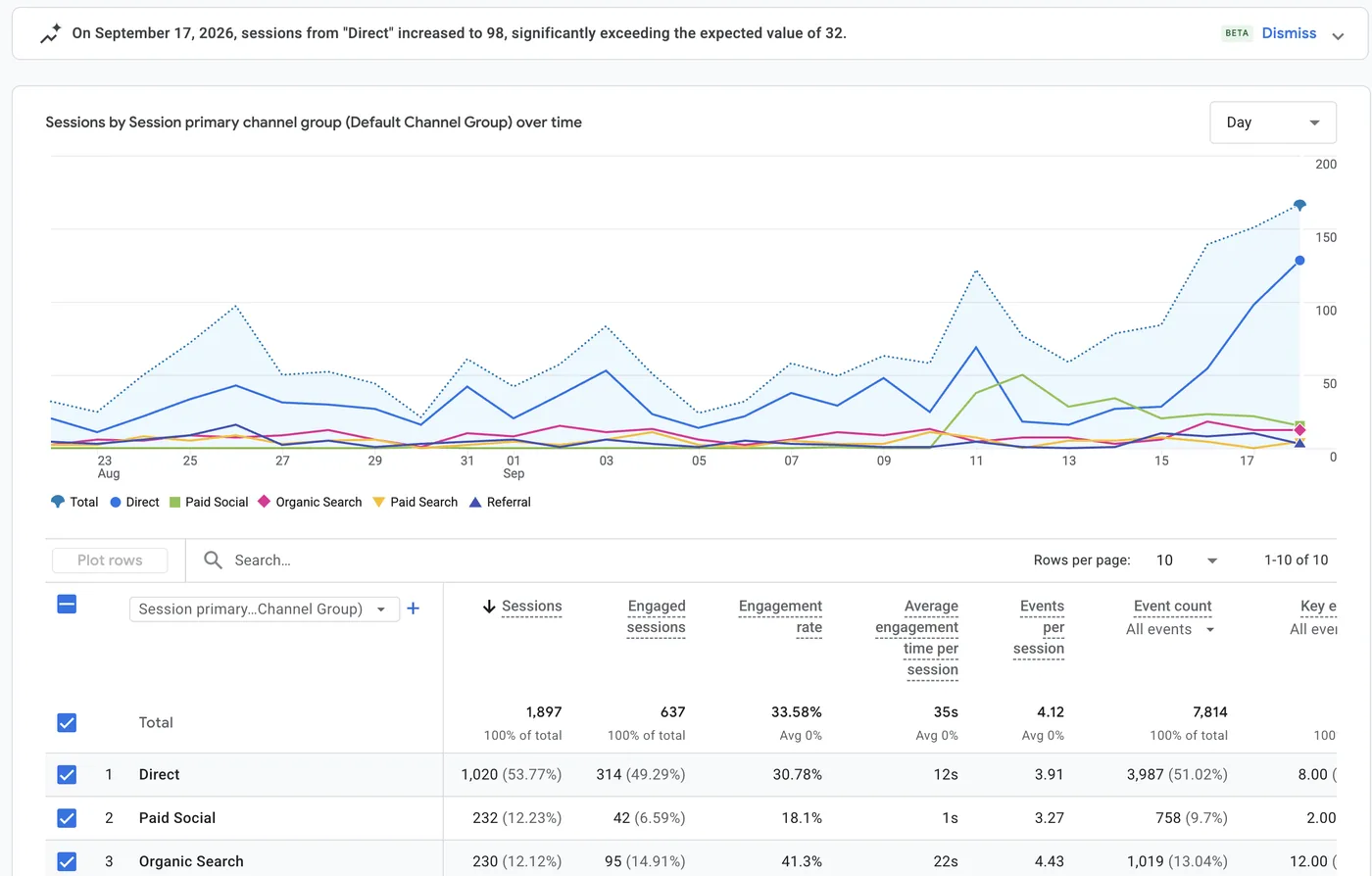
This is Acquisition. GA4 sorts arrivals into channels: organic search, paid, social, direct, referral, email. It also shows the specific source (say, google) and the campaign, if your links are tagged. Read it to see which channels bring people, not just the ones you spend most time on.
What pages are visitors viewing?
Find this in the Engagement area, under Pages and screens. Read Views. Look for which pages pull the most views and which of those lead to a key event. A blog post with thousands of views and no enquiries is telling you something.
What else are they doing?
Same area, now the events beyond page views: scrolls, clicks, video plays, form starts. Promote the ones you care about to key events, the scoreboard for the third question.
The few numbers worth reading
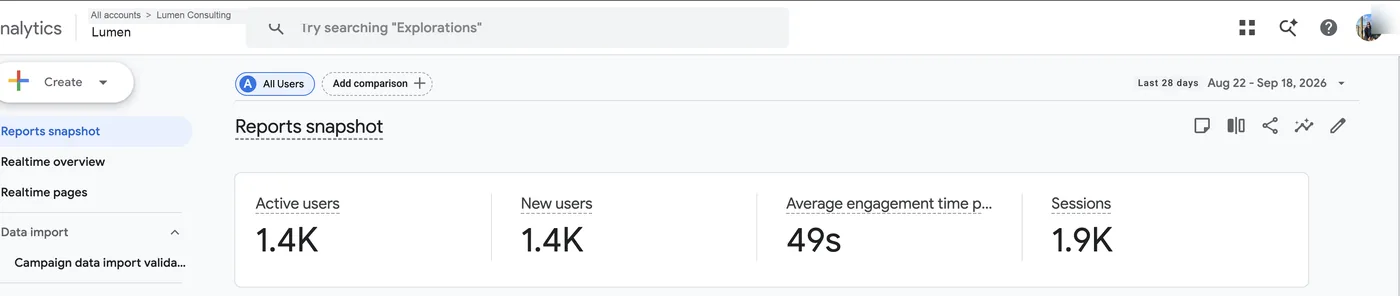
GA4 exposes hundreds of measures. You need about five, and the trick is knowing what each counts. Hover any underlined term for a definition.
- Users: how many distinct people visited.
- Sessions: how many visits they made. Higher than users, because people come back.
- Engaged sessions: visits that were not an instant bounce.
- Key events: the outcomes that matter, counted every time they happen.
- Engagement rate: the share of visits that stuck around.
Notice the question hiding in those definitions: per user, or per session? The same activity divided by users gives one number, by sessions another. Know which denominator a rate uses before comparing it.
Half of reading GA4 well is knowing whether a number is counted per user, per session, or per event.
Three things beginners misread
1. Sessions are not users
Sessions are almost always the larger number, because people come back. If someone says "we had 4,000 visitors", check whether they mean users (people) or sessions (visits). Reporting one as the other is the most common honest mistake in this tool.
2. A conversion is now a "key event", counted every time
"Conversion" was renamed key event. The counting matters more than the name: key events are tallied every time they happen, not capped at one per visit. Two form submits in one session are two key events, so key events can exceed sessions. Choosing which actions deserve this status is covered in how to choose your GA4 key events.
3. Blank rows are honesty, not bugs
You will meet placeholder rows. (not set) means GA4 had no value for that field. (direct) in the source column means it could not tell where the visit came from, often a typed URL, a bookmark, or stripped tracking. GA4 may also hide rows when a report covers very few people (a data threshold), or show a sampled estimate on huge queries. None are errors; treat them as a prompt to check your setup, not a reason to distrust the report.
Keep this one
Cheat sheet
| Metric | What it is | How it is counted |
|---|---|---|
| Users | Distinct people (devices) | One per distinct device |
| Sessions | Visits, ending after 30 min idle | One per visit; many per user |
| Engaged sessions | Non-bounce visits | 10s+, OR 2+ views, OR a key event |
| Key events | Actions you flagged (old "conversions") | Per event, not per session |
| Engagement rate | Share of visits engaged | Engaged sessions ÷ sessions |
| Conversion rate | Share completing a key event | Converting users ÷ users (or sessions ÷ sessions) |
Search query data lives in a different tool. Our Google Search Console for beginners guide covers the half of the picture GA4 does not show.
In Clearly
Connecting a GA4 property in Clearly turns these definitions into a live report. Authorise the property once, pick a date range, and the standard blocks fill in: a headline scorecard row, channel and engagement breakdowns, and trend charts. Metrics keep the meanings above, so engagement rate stays engaged sessions ÷ sessions. Nothing is silently redefined.
Your flagged key events become headline scorecards, so the actions that matter sit at the top. Acquisition becomes a channel breakdown, engagement its own panel, and the whole report is shareable with a client by link. You read it; you do not assemble it.
Where to go next
You now have the three questions (how they find you, what they do, whether it paid off), the one picture that explains the data (everything is an event), and the five numbers that answer most of it. Open your GA4 account and read just those five, for one date range, asking the three questions as you go. Then decide which actions deserve to be key events, and add Search Console for organic search. That is a complete beginner's reading of analytics, and enough to brief a client without bluffing.
The series
All nine Platform 101s, in setup order
What each platform does, what it costs, how to set it up, and what its numbers mean.